A Better View for Your Mac Creatively Boosting Your Workflow
If you’re a Mac user who spends a lot of time editing photos, cutting video, designing graphics, or even just wading through spreadsheets, you’ve probably hit a point where your current screen feels a bit… limiting. That’s where the magic of a great external monitor comes in. We’re talking about the best monitors for Mac, those special screens designed to play nicely with your Apple gear, making colors pop, details sharp, and your workspace feel a whole lot bigger and better. These aren’t just fancy TVs; they’re tools built for precision, helping you see your work exactly as you intended. If you’re serious about what you create or how efficiently you get things done on your MacBook or iMac, it’s time to seriously consider an upgrade.
See Your Work Come Alive: What These Monitors Actually Do
Imagine this: you’re editing a photo, and the skin tones look a little off. On your current screen, it’s hard to tell if it’s the photo or the monitor. A good external monitor for your Mac will show you those subtle color differences with incredible accuracy. This means when you send that photo off, it looks the same on someone else’s screen. For video editors, it’s about seeing every subtle shade in a dark scene or a vibrant sunset without losing detail. For designers, it’s about ensuring that brand color you painstakingly chose is perfectly represented, every single time.
These monitors also bring stunning clarity. Think of Apple’s own Retina displays, but even bigger. A 4K monitor for Mac, for example, packs so many pixels into the screen that text is razor-sharp, and images are incredibly detailed. It’s like looking through a clean window instead of a slightly smudged one. And the connectivity? Many of these screens offer a USB-C display option, which means one single cable can connect your MacBook to the monitor, charging it at the same time, and sending video and data. It cleans up your desk beautifully and makes plugging in a breeze.
Let’s picture some real-world magic:
- The Professional Photographer: You’ve just returned from a shoot and need to edit hundreds of RAW files. Connecting your MacBook to a color-accurate monitor means you can see exactly how those portraits will look, making precise adjustments to white balance and color correction. No more guessing if that highlight is blown out or if the shadows have enough detail. Your clients will thank you for the stunning, true-to-life results.
- The Graphic Designer on a Deadline: You’re working on a new logo and need to ensure the client’s brand colors are perfectly matched. A monitor with excellent color gamut coverage (meaning it can display a wider range of colors) lets you see the exact hue you’re aiming for. When you send the final files, you have confidence they’ll be reproduced faithfully across different devices.
- The Video Editor with an Eye for Detail: You’re editing a documentary and need to ensure the color grading looks consistent across all your clips. An external retina display monitor provides a larger canvas to meticulously tweak exposure, saturation, and contrast, making sure that the mood of your film is conveyed perfectly, even in dimly lit shots.
Who Will Get the Most Bang for Their Buck?
This is where we get practical. Not everyone needs a top-tier monitor, but if you fall into these categories, it’s a game-changer:
- Best for: Creative Professionals. Photographers, videographers, graphic designers, illustrators, and anyone whose work relies heavily on accurate color representation and fine detail will see the biggest benefit. A color accurate monitor is less of a luxury and more of a necessity for these folks.
- Good for: Power Users & Multitaskers. If you use your MacBook for work that involves juggling many windows, spreadsheets, or code, a larger, higher-resolution external display for MacBook can significantly boost your productivity. Seeing more at once means less scrolling and less window switching.
- Skip if: Casual Browsing and Basic Tasks are Your Jam. If you primarily use your Mac for email, social media, and light web browsing, your built-in screen is likely more than adequate. Investing in a high-end external monitor might be overkill, and there are simpler, more affordable options that will still meet your needs.
Looking at the Competition: How Do They Stack Up?
When we talk about the best monitors for Mac, we’re often looking at a few key players and types of displays.
- Apple’s Own Displays (like the Studio Display): These are often the “gold standard” for Mac users because they’re designed by Apple, for Apple. They offer fantastic color accuracy, high resolution, and seamless integration. The catch? They come with a premium price tag.
- High-End IPS Monitors from Brands like Dell, LG, and BenQ: These brands offer excellent 4K monitors for Mac and other displays that are often much more affordable than Apple’s offerings but still provide superb color accuracy and sharp resolution. They might require a bit more digging to find the perfect model that plays nicest with macOS.
- USB-C/Thunderbolt Displays: Many modern monitors now come with USB-C or Thunderbolt 3/4 ports. This is a huge win for Mac users because a single cable can deliver power, video, and data. A thunderbolt monitor can even offer faster data transfer for external drives connected to the monitor.
The main difference often comes down to the level of color calibration out of the box, the build quality, and how well they “plug and play” with macOS. While some third-party monitors might require a little tweaking in system settings to get perfect color, they often offer more screen real estate or specific features for a fraction of the cost of Apple’s in-house options.
Getting Started: Is It a Hassle or a Breeze?
For most modern monitors compatible with Macs, setup is surprisingly straightforward.
- Plug and Play (Mostly): Connect your MacBook to the monitor using a USB-C or Thunderbolt cable (if supported) or an HDMI cable with an adapter. Your Mac will usually recognize the display automatically.
- Display Settings: You might want to adjust the resolution, refresh rate, or color profile within your Mac’s “Display Settings.” This is usually quite intuitive, similar to adjusting settings on your iPhone or iPad.
- USB-C Benefits: If you opt for a USB-C display, the “one cable” solution is a dream. It powers your MacBook, sends video, and often provides USB ports on the monitor itself for keyboards, mice, or webcams. It’s a huge win for keeping your desk tidy and your workflow smooth.
For most users, getting up and running takes less than 10 minutes. There’s very little technical knowledge required, and if you’re comfortable adjusting settings on your phone, you’ll be fine here. The biggest learning curve might be understanding color profiles if you’re diving deep into professional work, but for everyday use, it’s incredibly user-friendly.
The Good Stuff You’ll Actually Notice
Let’s talk about the real wins you’ll experience daily:
- Eye-Popping Visuals: Colors are richer, blacks are deeper, and whites are brighter. Photos and videos look incredibly lifelike, making your content more immersive and your edits more accurate.
- Crystal Clear Detail: Text is so sharp you can read tiny fonts without squinting. This reduces eye strain, especially during long work sessions. It’s like upgrading from reading a newspaper to reading a high-definition magazine.
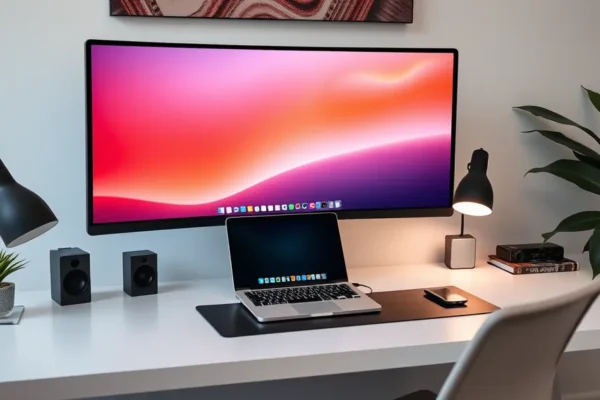
- More Workspace, More Productivity: Having a larger external display for MacBook means you can spread out your work. Imagine having your research document open on one side of the screen and your writing document on the other, or having your video editing timeline and preview window side-by-side without constant switching.
- Simplified Connectivity: A good USB-C display means one cable to your laptop. This not only cleans up your desk but also makes packing up to go incredibly fast. Just unplug one cable and you’re mobile.
- Ergonomic Desktop Setup Potential: Paired with an adjustable stand, these monitors can help you achieve a more comfortable ergonomic desktop setup, positioning the screen at the right height to reduce neck and back strain.
User feedback often highlights the sheer joy of seeing their work in such high fidelity. Many professional photographers and designers report that moving to a color accurate monitor was a revelation, saving them time and preventing costly mistakes.
The Not-So-Great Bits You Should Know
No product is perfect, and it’s important to be aware of potential downsides:
- Price Tag Can Be Steep: High-quality, color-accurate monitors, especially those with 4K resolution and excellent connectivity, can be a significant investment. This is often the biggest hurdle for many consumers.
- Color Calibration Can Vary: While many monitors boast excellent color accuracy, out-of-the-box calibration might not be perfect for every single user’s workflow. Some may require minor adjustments or even professional calibration for absolute precision.
- Potential Compatibility Quirks: While most monitors work well with macOS, occasionally there can be minor issues with certain resolutions, refresh rates, or HDR settings on older Mac models or specific software. Doing a quick search for “[Monitor Model] Mac compatibility” can save you headaches.
- Not All USB-C is Equal: While many monitors offer USB-C, ensure it supports DisplayPort Alternate Mode for video output and ideally Power Delivery for charging your MacBook. Not all USB-C ports are created the same, so check the specs.
Some users have noted frustration if a monitor doesn’t automatically set to the ideal refresh rate, requiring manual adjustment in the Mac’s system preferences.
What’s the Damage? Value and Your Wallet
The cost of best monitors for Mac can range dramatically.
- Budget-Friendly Options: You can find good 27-inch QHD (1440p) monitors from brands like Dell or LG for around $300-$400. These are a significant upgrade for general use and light creative work.
- Mid-Range Excellence: For around $500-$800, you can step into solid 4K monitor for Mac options with good color coverage, often from brands like BenQ or ASUS. These are excellent for most creative professionals.
- Premium and Professional Grade: Apple’s own displays or high-end professional monitors from brands like Eizo can cost upwards of $1,000-$2,000 or even more. These are for users who demand the absolute best in color accuracy and features.
Is it worth it? For creative professionals, absolutely. The time saved and the accuracy gained often pay for themselves. For power users, the productivity boost makes the investment worthwhile. For casual users, it’s likely not the best value unless you’re looking for a significantly larger screen for general comfort. Keep an eye out for sales, especially during holiday seasons, as these monitors can see significant discounts.
The Final Word: Should You Buy One?
If you’re looking to elevate your Mac experience, especially if you’re involved in any kind of visual work or demand a more expansive digital workspace, investing in a quality external display for MacBook is one of the best upgrades you can make. For creative professionals, a color accurate monitor is not just a nice-to-have; it’s an essential tool.
- Definitely buy if: You edit photos or videos, design graphics, or do any work where color accuracy is paramount. You also benefit greatly if you’re a power user who juggles many windows and wants a more comfortable ergonomic desktop setup.
- Consider it if: You simply want a larger, sharper screen for everyday tasks and find your current MacBook display too small or cramped.
- Skip it if: Your Mac usage is limited to email, basic web browsing, and casual media consumption, and you’re happy with your current screen.
Ultimately, the best monitor for Mac is the one that fits your specific needs and budget. It’s about finding that perfect balance of visual fidelity, usability, and price.
Got Questions? We’ve Got Answers!
What’s the biggest difference between a regular monitor and one for Mac?
Monitors designed for Macs often prioritize color accuracy and offer higher resolutions (like 4K monitors for Mac) and seamless connectivity, especially through USB-C display or Thunderbolt ports, ensuring they work smoothly with macOS.
Do I really need a “Retina Display Monitor” if I’m not a pro?
Not necessarily. While a retina display monitor offers incredible sharpness, even a good QHD or 4K monitor provides a significant boost in clarity over older or lower-resolution displays, reducing eye strain and making text easier to read for everyone.
How do I know if a monitor is truly color accurate?
Look for monitors that specify their color gamut coverage (like 99% Adobe RGB or DCI-P3) and mention factory calibration or color accuracy reports. Reading reviews from reputable tech sites that test color accuracy is also crucial.
Is a Thunderbolt monitor really that much better than USB-C?
Thunderbolt 3 and 4 offer higher bandwidth than standard USB-C, meaning they can handle faster data transfer for things like external SSDs connected through the monitor, in addition to video and power. For most users, a good USB-C display with Power Delivery is sufficient, but a thunderbolt monitor offers a bit more power for demanding workflows.
Will any monitor work with my MacBook?
Most modern monitors will work with your MacBook via HDMI or USB-C. However, to get the best experience, look for monitors that support the resolution and refresh rate of your MacBook and ideally offer USB-C connectivity for that convenient single-cable setup.
Where can I find the best monitors for Mac?
You can find great options at major electronics retailers like Best Buy, Amazon, and B&H Photo. Many brands, like Dell, LG, BenQ, and Apple, also sell directly from their websites.
Product prices and availability vary by region. Verify current pricing before purchase.