What Exactly Are Custom Windows Notifications
If you have ever found yourself staring at your screen and completely forgetting to stand up, drink water, or check on a task because you got lost in a spreadsheet, you know how easily time slips away. Windows 11 notifications are usually limited to app alerts like emails or system updates. However, you can actually build your own automated system to nudge you throughout the day.
By using a combination of the built-in Windows Task Scheduler and a tiny piece of code called PowerShell, you can create custom Windows 11 notifications that pop up on your desktop exactly when you want them. Think of this as a digital personal assistant that never sleeps. It is designed for anyone who wants to boost their productivity without paying for expensive third-party software, making it a perfect tool for students, home office workers, or anyone trying to build better daily habits.
Real World Ways to Use Your New Reminders
These desktop alerts are highly flexible. Because you are the one telling the computer when to run them, you can customize them for almost any situation.
If you work from home, you can set a recurring reminder that pops up every hour to tell you to look away from your monitor for sixty seconds. This simple habit can reduce eye strain and fatigue by the end of the day. If you manage a busy household, you could set an alert at 5 PM on weekdays that says “Start dinner prep” or “Check the laundry.” If you are a freelancer, you might set a pop-up every two hours to remind you to log your hours in your tracking app. It feels like having a gentle digital tap on the shoulder that keeps you on track without being as intrusive as a phone alarm.
Who Should Use This Method
This approach is best for people who enjoy customizing their Windows 11 experience and want a free way to stay organized. It is great for those who value privacy and do not want to hand over their personal schedule data to a third-party app. However, you should skip this if you are not comfortable with basic computer settings. If you prefer a “set it and forget it” app with a fancy user interface and colorful icons, a dedicated reminder app from the Microsoft Store will be a much easier experience for you.
How It Stacks Up Against Other Tools
There are plenty of alternatives for desktop reminders, such as Microsoft To Do, Google Calendar, or dedicated apps like TickTick. The main difference is that those apps are designed to be “all-in-one” planners. They sync to your phone and have cloud backups. Our DIY method using Windows Task Scheduler is much more limited. It does not sync to your mobile devices, and it does not have a fancy dashboard. But, it is completely free, works offline, and requires zero monthly subscriptions, which makes it a powerful value for someone who just needs a simple, recurring ping on their main work machine.
Setting Up Your Custom Notifications
Getting started is easier than it sounds, even if you are not a “tech person.” You will need to open the Task Scheduler app by typing it into your Windows search bar. Once it is open, you create a new “Basic Task,” name it, and set the trigger to “Daily” or “Weekly.” When it asks you what to do, select “Start a program.”
In the “Program/script” box, type “powershell” and in the “Add arguments” box, copy and paste this simple line:
-Command “& {Add-Type -AssemblyName System.Windows.Forms; [System.Windows.Forms.MessageBox]::Show(‘Time to drink water!’, ‘Reminder’)}”
Click finish, and you are done. The most common frustration is getting the punctuation wrong in that line of code, so be sure to copy it exactly. If you want to change the message, just edit the text inside the single quotes.
The Real Advantages of This System
- Zero Cost: You are using tools already built into your computer, so there is nothing to buy.
- Privacy: Your reminders stay on your machine. No data is sent to a third-party server or cloud provider.
- Reliability: Because it uses the Windows engine, it is incredibly stable and does not rely on a constant internet connection to trigger.
- Deep Customization: You can set these tasks to trigger only on specific days, repeat every few minutes, or even run when you first log into your computer.
Common Limitations and Drawbacks
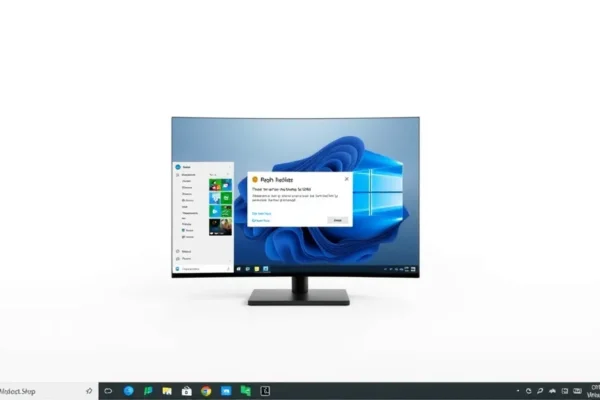
While this is a handy trick, it is not a perfect app. First, the alert looks like a standard Windows system box, which is functional but not particularly pretty or modern. Second, if you accidentally delete the task in the scheduler, the reminders stop immediately, and there is no “undo” button. Finally, if your computer is asleep or turned off during the scheduled time, the notification will not fire until you wake the computer up, which means it is not a replacement for a critical alarm clock or a mission-critical deadline tracker.
Is It Worth Your Time
Since this method is completely free, the only “cost” is about ten minutes of your time to set it up correctly. For someone who thrives on structure but hates managing endless apps, the value is high. It offers a level of control that standard reminder apps cannot match because you can chain it to other scripts later on if you get curious. It is not an investment, but a skill. If you find yourself forgetting the small stuff during a busy workday, this is a great, low-effort productivity boost.
Verdict and Recommendations
If you are looking for a simple, private, and free way to add recurring reminders to your desktop, this is a fantastic “under the hood” trick. It is perfect for users who want to streamline their workflow without relying on external services. However, if you need cross-device syncing or a beautiful interface, look for a dedicated task manager app instead. Use this if you are a “set it and forget it” type of person who needs a nudge while sitting at your desk.
Frequently Asked Questions
Is using Task Scheduler for Windows 11 notifications safe for my computer?
Yes, it is perfectly safe. You are using standard Windows automation tools that were specifically built for users to run recurring tasks.
Will these notifications sync to my phone?
No. Because this method runs locally on your PC, it does not communicate with your phone or any cloud accounts.
Can I change the notification sound?
The method provided creates a visual pop-up box. Adding a custom sound requires a slightly more complex PowerShell script, which may be more difficult for beginners.
Do I need to leave my computer on for this to work?
Yes. Your computer must be awake and logged into your user account for the Task Scheduler to trigger the pop-up.
Are there any hidden costs?
None at all. This utilizes built-in Windows functionality that is included with your existing operating system license.
Product prices and availability vary by region. Verify current pricing before purchase.