Meet the Samsung Galaxy Edge Panel A Pocketful of Shortcuts
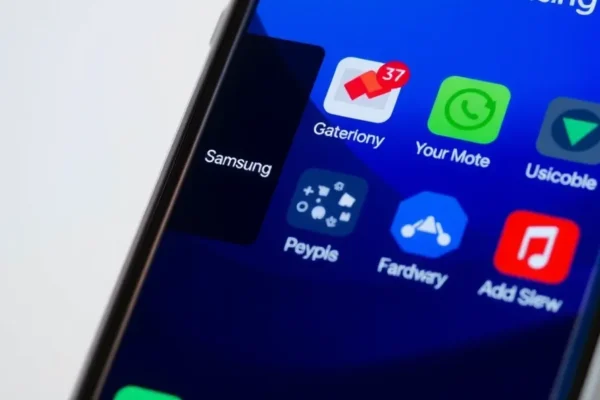
Ever feel like you’re juggling too many apps on your phone, constantly swiping between screens to get things done? Samsung’s Galaxy Edge Panel aims to fix that. Think of it as a super-smart, customizable side-bar that lives right on the edge of your Samsung phone screen. Instead of digging through menus, you can pull out a handy panel with quick access to your favorite apps, contacts, tools, and even useful information. It’s designed for anyone who wants to make their smartphone experience smoother and a bit more efficient, especially those with Samsung Galaxy S series phones running Samsung One UI. If you’re looking to get more out of your phone without the hassle, this feature is worth a look.
How the Edge Panel Works in Your Daily Life
So, what does this Edge Panel actually do for you? Imagine this: you’re in the middle of a work call and need to quickly jot down a note. Instead of ending the call or fumbling for your notepad app, you simply swipe in from the edge of your screen, and a pre-selected panel with your note-taking app appears. You can type your note, then swipe it away without missing a beat of the conversation.
Here are a couple of real-world scenarios where the Edge Panel shines:
- The Busy Parent: Picture this: you’re helping your child with homework, and they suddenly need to find a specific image for their project. You can have a “People” panel with your spouse’s contact ready to go, or an “Apps” panel with quick access to your photo gallery or a drawing app. Need to send a quick text about dinner plans? A swipe and you’re there, then swipe back to whatever you were doing.
- The Frequent Traveler: When you’re on the go, every second counts. You can set up an Edge Panel with quick links to your airline app, your hotel booking, a translation app, or even your favorite navigation tool. It’s like having a mini-dashboard for your travel essentials, always just a flick of the wrist away. This makes checking flight times or getting directions much less of a chore.
- The Creative Type: For those who love to capture ideas or edit photos on the fly, the Edge Panel can be a game-changer. You could have quick access to your camera, a photo editing app like Adobe Lightroom Mobile, or even a drawing app like Samsung Notes. This means you can jump into creative mode instantly, turning inspiration into reality without breaking your workflow.
Who Will Love the Edge Panel?
The Samsung Galaxy Edge Panel is a real winner for a few key types of users:
- Best for: Power Users and Multitaskers. If you’re constantly switching between apps, managing multiple projects, or just like having everything at your fingertips, the Edge Panel is a productivity booster. It’s perfect for those who want to streamline their phone interactions.
- Good for: Anyone looking for convenience. Even if you’re not a hardcore multitasker, the ability to quickly access your most-used apps or contacts without navigating menus is undeniably convenient. It’s like having a personalized shortcut to your digital life.
- Skip if: You prefer a minimalist interface or rarely switch apps. If you’re someone who sticks to a few core apps and doesn’t see the need for extra shortcuts, or if you find the idea of an extra on-screen element distracting, the Edge Panel might just be clutter you don’t need. It’s not essential for basic phone use.
How Does it Stack Up Against Other Features?
Compared to other smartphone features, the Edge Panel offers a unique approach. Many phones have app shortcuts or widgets on their home screens, but the Edge Panel’s advantage is its always-accessible, overlay nature.
- m> Vs. Home Screen Widgets: Widgets are great for seeing information at a glance, but you still need to navigate to your home screen. The Edge Panel is available from any* app.
- Vs. App Drawers: Standard app drawers require a full swipe up to reveal all your apps. The Edge Panel provides curated, immediate access to a select few.
- Vs. Notification Shade Shortcuts: The notification shade offers some quick toggles, but it’s not designed for launching specific apps or contacts.
Samsung’s implementation within its One UI is generally considered well-integrated. While other manufacturers might offer similar edge-swipe features, Samsung’s Edge Panel is often praised for its variety of available panels and robust customization options. In terms of price, the Edge Panel is a free software feature built into Samsung Galaxy phones, so there’s no direct cost comparison. The value lies in how much it enhances the functionality of the phone you already own.
Getting Started with the Edge Panel is a Breeze
Setting up the Edge Panel is surprisingly simple, with a minimal learning curve. You don’t need to be a tech wizard.
1. Enable it: Head to your phone’s Settings, find “Display,” and then tap on “Edge panels.” Toggle it on.
2. Choose Your Panels: Once enabled, you can select which panels you want to appear. Samsung offers pre-built panels like “Apps,” “People,” “Smart Select” (for screen captures), “Tools” (like a ruler or compass), and more. You can also download additional panels from the Galaxy Store.
3. Customize Your Panels: For the “Apps” panel, you can choose exactly which apps appear. For the “People” panel, you can pick your favorite contacts. It’s a drag-and-drop process that’s quite intuitive.
The whole process of turning it on and selecting a few basic panels can take less than five minutes. While mastering all the advanced customization might take a little longer, basic functionality is immediately available. The main “trick” to know is how to swipe the handle (that little translucent bar on the edge of your screen) to open the panel.
The Real Wins: Why You’ll Appreciate the Edge Panel
Let’s talk about what makes the Edge Panel genuinely useful in your day-to-day grind:
- Speedy Access to Essentials: This is the big one. Launching your most-used apps, calling your family, or checking your calendar becomes a one-swipe action, saving you precious seconds and a lot of finger-swiping.
- Multitasking Made Simple: Seamlessly switch between apps or perform quick actions without disrupting your current task. For example, using the “Smart Select” panel to quickly grab a piece of text or an image from one app to paste into another is incredibly handy.
- m> Highly Customizable: The ability to choose exactly what goes onto your panels means it’s tailored precisely to your* needs, not some generic set of shortcuts. This personalization makes it feel truly like your own extended phone interface.
- Always There When You Need It: Unlike home screen widgets or app icons, the Edge Panel is persistently accessible from any screen. This constant readiness means you never have to think twice about accessing your shortcuts.
- Adds Value to Your Existing Phone: Since it’s a built-in software feature, it enhances the functionality of your Samsung Galaxy phone without any extra cost.
User feedback often highlights how much time people save once they get used to the Edge Panel. Many reviewers mention that after a short adjustment period, they can’t imagine using their Samsung phone without it.
Where the Edge Panel Falls Short
Now, for the honest truth. No feature is perfect, and the Edge Panel has its quirks:
- The “Accidental Swipe” Factor: Sometimes, especially when you’re holding your phone in a particular way, you might accidentally swipe the Edge Panel open. While you get used to it, it can be a minor annoyance at first and might even happen during gaming or intense usage.
- Panel Overload Can Be Clutter: If you go overboard adding too many panels or too many apps to a panel, it can start to feel overwhelming rather than helpful. Finding what you need might then require extra scrolling within the panel itself.
- Limited to Specific Samsung Phones: This is a Samsung One UI feature. If you don’t have a Samsung Galaxy phone that supports Edge Panels (primarily their higher-end Galaxy S and Note series, and some A series models), you simply can’t use it. It’s not a universal Android feature.
- m> Requires Conscious Setup: While easy to set up, it does* require you to take the initiative to customize it. If you’re not someone who likes to tweak settings, it might just sit there unused after you enable it.
Published reviews and user forums occasionally mention that the visual design of the panels could be more modern or that some third-party panels can be a bit clunky.
Is the Edge Panel Worth Your Money?
The Samsung Galaxy Edge Panel is a free software feature, so its “price” is essentially included with the cost of your compatible Samsung Galaxy phone. This makes it incredibly high value. You’re not paying extra for this functionality.
The question then becomes: is it worth the minimal effort to set up and use on your existing phone? For most users with compatible devices, yes, absolutely. It enhances productivity and convenience without any additional financial outlay. There are no hidden costs, no subscriptions required for the basic features. The long-term value is in the continued efficiency it offers for as long as you own your phone.
The Final Word: Should You Embrace the Edge?
If you own a Samsung Galaxy phone that supports the Edge Panel, you absolutely should give it a try. It’s a thoughtfully designed feature that genuinely makes interacting with your phone quicker and more efficient.
Who should definitely buy in:
Anyone who wants to streamline their smartphone usage, multitaskers, frequent travelers, and busy individuals who need quick access to apps and contacts. If you already have a compatible Samsung phone, this is a no-brainer to explore.
Who might want to wait or skip:
Those who prefer a completely minimalist phone interface, users who are perfectly happy with their current app access methods, or if you own a Samsung model that doesn’t support the feature.
The Samsung Galaxy Edge Panel is a prime example of how smart software can enhance hardware. It’s a practical tool that, once customized, feels like a natural extension of your device, making your daily digital life a little smoother.
Your Edge Panel Questions Answered
Q: What phones have the Samsung Galaxy Edge Panel?
A: The Edge Panel is primarily found on Samsung’s Galaxy S series, Galaxy Note series, and some of their higher-end Galaxy A series smartphones, running on Samsung One UI. You’ll need to check your specific model’s specifications.
Q: Is the Edge Panel difficult to set up?
A: No, it’s very user-friendly. You can enable it and select basic panels in just a few minutes through your phone’s settings. Customizing which apps or contacts appear is also straightforward.
Q: Can I add my own apps to the Edge Panel?
A: Absolutely! The “Apps” panel lets you select any app installed on your phone. You can also find third-party panels in the Samsung Galaxy Store for specialized functions.
Q: Does the Edge Panel use a lot of battery?
A: It uses a minimal amount of battery. Because it’s a software feature that’s mostly inactive until you swipe it, its impact on battery life is negligible for most users.
Q: Will the Edge Panel interfere with games or full-screen apps?
A: It can sometimes be accidentally triggered, but you can usually adjust its sensitivity or position. Many games also have options to disable edge gestures to prevent interference.
Q: Where can I download more Edge Panels?
A: You can find additional panels by opening your Edge Panel, tapping the gear icon to go to settings, and then tapping “Galaxy Store” under “Panels.”
Product prices and availability vary by region. Verify current pricing before purchase.