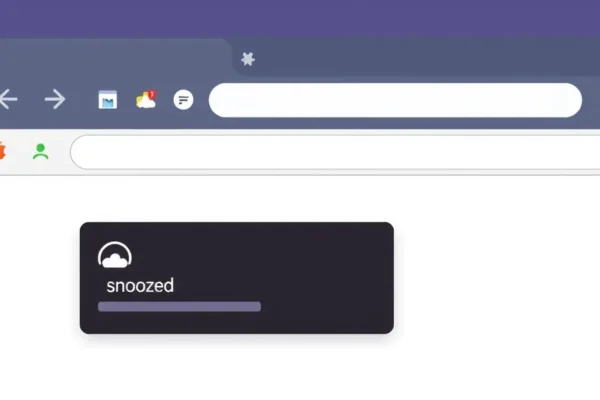
Let’s face it, our web browsers can quickly turn into digital junk drawers. Open tabs pile up, each one a reminder of a task unfinished, an article unread, or a website we meant to revisit. It’s overwhelming and a surefire way to kill our focus. What if there was a way to hit the pause button on those stray tabs, just like you can with your emails? Enter Tuck, a clever browser extension designed to help you declutter and regain control.
Tame Your Tab Chaos
Think of Tuck as a neat little organizer for your browser. It’s a browser add-on that lets you “snooze” open tabs. Instead of closing a tab you need later but don’t have time for right now, you can simply snooze it. Tuck will then hide that tab and bring it back to your attention at a time you choose. It’s all about bringing some digital organization to your chaotic browsing habits and improving your overall productivity tools.
This is especially for anyone who finds themselves with dozens of tabs open, constantly switching between them and feeling stressed about what they’re missing. If you’re juggling work projects, personal errands, and endless online rabbit holes, Tuck aims to simplify your workflow optimization.
How to Actually Use Tuck Every Day
Imagine this: You’re researching a new recipe for dinner, and you find a great-looking one. But then, your boss pings you with an urgent question. Instead of closing the recipe tab and hoping you remember which website it was on, you click the Tuck icon. You select “remind me in 2 hours,” and poof! The recipe tab disappears, out of your immediate view. Two hours later, Tuck pops that tab back up, ready for you to consider dinner plans.
Here are a few real-world scenarios:
- The Research Warrior: You’re working on a big project and stumble upon several helpful articles. You don’t have time to read them fully now, but you need them for later. Snooze them with Tuck, setting specific times or days for them to reappear, so your main workspace stays clean and focused.
- The Busy Parent: You’re browsing for a birthday gift for your child, find a few options, but then need to jump on a school call. Snooze those gift tabs for after the call or later that evening when you have a moment. No more lost links!
- The Information Hoarder (like me!): You’re reading an interesting news article but get interrupted. You can snooze it until later today, or even until next Monday, to ensure you don’t forget about it but also don’t let it clutter your current thought process.
It essentially works like a temporary filing cabinet for your web browsing, keeping your active screen clear while ensuring nothing important gets lost forever. It feels like a breath of fresh air for your digital workspace.
Who Should Definitely Grab This Extension
Best for: Digital organizers, students, remote workers, and anyone who feels overwhelmed by the sheer volume of open tabs. If you actively use productivity tools and are always looking for ways to improve your workflow optimization, Tuck is a strong contender.
Good for: Casual internet users who occasionally find themselves with too many tabs but don’t necessarily need complex tab management systems. It’s a simple solution for a common problem.
Skip if: You have a very streamlined browsing habit and rarely open more than 5-10 tabs at a time. If you’re happy with your current tab management method (like bookmarking everything or just closing tabs you’re done with), you likely won’t see a huge benefit. Also, if you’re on a very strict security policy that prohibits browser add-ons, this won’t be an option.
How Tuck Stacks Up Against Other Tab Tools
The browser extension market is packed with tab management solutions. Some are simple bookmarking tools, others are full-blown tab organizers that group and categorize. Tuck’s main competitor is its simplicity and its “snooze” functionality, which directly mirrors a feature many of us rely on in our email clients.
Compared to extensions that offer complex session management or tab grouping, Tuck is far more straightforward. You won’t find yourself spending hours learning its features. However, if you need advanced features like saving entire browsing sessions or collaborative tab sharing, Tuck might feel a bit basic. In terms of price, Tuck is often free or has a very low one-time cost, making it a much more accessible option than some subscription-based productivity tools.
Getting Started: Is It a Headache?
Setting up Tuck is wonderfully simple. It’s a browser add-on, so you’ll typically find it in your browser’s extension store (like the Chrome Web Store or Firefox Add-ons). Installation takes seconds – just click “Add to [Browser Name]” and confirm.
Once installed, a small Tuck icon appears near your address bar. Clicking it reveals your open tabs. To snooze a tab, you simply select it from the list that pops up and choose when you want it to reappear – options usually include “later today,” “tomorrow,” “next week,” or a custom date and time. There’s virtually no learning curve; it’s intuitive from the first click.
For most users, you’ll be up and running, snoozing tabs like a pro, within minutes of installing it. No technical skills or deep knowledge of browser add-ons are required.
The Good Stuff: Why You’ll Like Tuck
- Reduces Browser Clutter: This is its main superpower. By removing tabs from view that you’re not actively using, it makes your browsing experience feel cleaner and less overwhelming.
- Improves Focus: A less cluttered browser means fewer distractions. When you’re trying to concentrate on one task, Tuck helps keep the peripheral browsing noise at bay.
- Easy to Use: As mentioned, it’s incredibly intuitive. The snooze feature is a familiar concept for many, making it simple to adopt into your daily workflow.
- Saves Important Links: No more losing that article you wanted to read or that product you were considering. Snoozing ensures you’ll see it again without having to bookmark or remember it.
- Lightweight: Unlike some power-hungry extensions, Tuck generally doesn’t bog down your browser performance, which is crucial for a smooth browsing experience. User reviews on platforms like the Chrome Web Store often praise its unobtrusive nature.
The Not-So-Good: What Could Be Better
- Limited Functionality Beyond Snoozing: If you’re looking for advanced tab organization, like creating themed tab groups or saving entire sessions for later, Tuck doesn’t offer that. It’s purely a “snooze and return” tool.
- Relies on Browser Activity: If your browser crashes or you have to restart your computer unexpectedly, there’s a small chance you could lose a tab that was about to be snoozed or was just snoozed. While the extension is generally reliable, this is a minor risk inherent in browser add-ons.
- Potential for “Snooze Overload”: Just as you can have too many open tabs, you can also have too many snoozed tabs. If you’re not disciplined about when you snooze and when you actually address those snoozed tabs, you could end up with a backlog.
- Browser Specificity: While it supports major browsers like Chrome and Firefox, if you use a more niche browser, compatibility might be an issue.
Cost and Value: Is It Worth Your Money?
Tuck is typically offered as a free browser extension, or sometimes for a very small one-time fee (e.g., around $5-$10) for advanced features or to support development. As of my last check, the core functionality is usually free.
Given that the core function of snoozing tabs is free, the value proposition is exceptionally high. For the price of free (or a small one-time purchase), you get a significant boost in digital organization and a reduction in browser clutter, which can directly lead to increased productivity. If you were to compare this to paid productivity apps or task management systems, it’s an absolute steal.
There are no hidden costs or subscriptions for the basic features, making it an accessible tool for almost everyone. Long-term value comes from consistently using it to maintain a less cluttered and more focused browsing experience.
Final Thoughts: Should You Hit Snooze?
If you’re drowning in tabs and feel like your browser is working against you, Tuck is an absolute no-brainer to try. Its simple, intuitive snooze feature is a game-changer for anyone seeking better tab management and improved focus. It’s a practical productivity tool that solves a very common digital pain point.
You should buy this if: You constantly find yourself with too many open tabs and feel overwhelmed. You want a simple, effective way to temporarily set aside things you need later. You appreciate easy-to-use browser add-ons that make a tangible difference in your daily workflow.
You should probably skip this if: Your browsing habits are already very organized, or you prefer manual bookmarking and closing of tabs. You need more advanced features like session saving or collaborative tab tools.
Ultimately, Tuck is a wonderfully effective, user-friendly browser extension that delivers on its promise of helping you snooze tabs and declutter your digital life. For most people struggling with browser clutter, it’s definitely worth your time and is a fantastic addition to your productivity toolkit.
Frequently Asked Questions About Tuck
What is the primary benefit of using Tuck?
The primary benefit is to help you snooze open tabs, reducing browser clutter and improving your focus by temporarily hiding content you don’t need right now but want to return to later. It’s a great tool for tab management.
Is Tuck a free browser extension?
Yes, the core snooze tab functionality is typically available for free, though some versions or enhanced features might have a small one-time cost to support development. Always check the specific store page for pricing details.
How does Tuck compare to just using bookmarks?
Bookmarks are for saving links you want to revisit indefinitely. Tuck is for temporarily setting aside tabs you are actively looking at but need to deal with later, making them reappear at a scheduled time without cluttering your current view.
Can Tuck help me focus better on my tasks?
Absolutely. By allowing you to hide distracting tabs, Tuck helps create a cleaner, less cluttered browser environment, which is essential for maintaining focus and boosting productivity tools.
What happens if my browser crashes after I snooze a tab with Tuck?
While generally reliable, there’s a small risk that a very recently snoozed tab or one about to be snoozed could be lost if the browser crashes unexpectedly. This is a common consideration for most browser add-ons.
Where can I download the Tuck browser extension?
You can find Tuck on your browser’s official extension store, such as the Chrome Web Store for Google Chrome or the Firefox Add-ons website for Mozilla Firefox.
Product prices and availability vary by region. Verify current pricing before purchase.