Finding the Perfect Desktop Companion for Your Mac
When you use a MacBook Pro or a desktop Mac, the screen you attach to it is arguably the most important accessory you own. A great external display acts as a natural extension of your computer, making your fonts look crisp, your photos pop with life, and your windows easier to manage. If you are struggling with a blurry, cheap monitor that does not play nice with your Mac software, you are likely missing out on the smooth, fluid experience Apple users expect.
These best monitors for Mac options are designed to solve the common frustrations of cable clutter and color mismatches. Whether you are a professional photographer needing perfect color accuracy or just a student trying to keep five browser tabs open at once, finding a mac compatible monitor that actually feels like a Mac product is a game changer. We have hand-picked six displays that bridge the gap between your laptop and a full desktop workspace.
How These Monitors Change Your Daily Routine
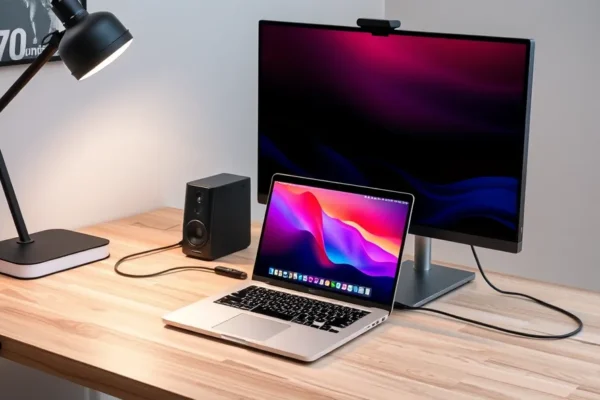
Think of these monitors as an extension of your computer’s brain. In everyday life, they do more than just show pictures. A well-integrated USB-C monitor for Mac acts as a docking station. You plug one single cable into your laptop, and suddenly your screen is glowing, your laptop is charging, and your accessories are connected.
Consider these scenarios:
- The Busy Professional: If you work from home and spend your day in video calls, a monitor with a built-in webcam and speakers saves you from wearing a headset all day. You can leave your laptop closed under a stand and keep your desk tidy.
- The Creative Hobbyist: If you edit photos or videos, using a 4k monitor for Mac ensures that the red in your sunset photo actually looks like red, not orange. These monitors offer the high pixel density that makes text look like a printed page rather than jagged, blocky pixels.
- The Student or Writer: When you need to read long documents, having a monitor that can rotate to a vertical position is a lifesaver. It lets you scroll less and see more of your work at once.
Who Should Invest in These Displays
These monitors are best for people who rely on their Mac for hours every day. If you use your laptop as your primary computer, these are essential tools to improve your posture and your productivity. They are great for anyone who wants a “plug and play” experience without troubleshooting screen settings every morning.
However, you should skip these high-end options if you only use your computer for occasional emails or light browsing. You can save money by choosing a basic display if you do not care about color accuracy or charging features. Additionally, if you have an extremely old Mac that does not support modern video outputs, you might find the newer Thunderbolt monitor for Mac options frustrating to set up without a bundle of adapters.
Comparing Your Options
The market for Mac display tech is crowded, but six stand out for their reliability:
- Apple Studio Display: The ultimate choice for Mac users who want perfect integration, though it comes at a premium price.
- LG UltraFine 5K: The closest you will get to the internal Apple screen experience at a slightly more accessible price point.
- Dell UltraSharp U2723QE: The best iMac alternative for professionals who need tons of ports and a beautiful, color-accurate screen.
- BenQ PD2725U: A favorite for designers because it has a special dial that makes switching between color modes easy.
- Samsung M8 Smart Monitor: A great hybrid if you want a monitor that doubles as a TV for streaming shows when your work is done.
- ASUS ProArt PA279CRV: The budget-friendly hero that gives you professional-grade color without the massive price tag.
Getting Started and Setting Up
One of the biggest benefits of these monitors is the ease of setup. Most of these models are true “one-cable” solutions. You connect the USB-C or Thunderbolt cable from the back of the monitor to your Mac, and you are ready to go. You do not need to install complicated drivers or restart your computer five times.
The most important part of the setup is ensuring your desk is deep enough. Because these monitors are often 27 inches or larger, you want enough space to sit at a healthy distance. Most people find that within 10 minutes of unboxing, they have a professional-grade office setup ready to use.
The Real-World Pros
- Cable Management: With a USB-C monitor for Mac, you lose the mess of three or four different wires.
- Visual Clarity: Once you see a high-resolution 4k monitor for Mac, you will find it nearly impossible to go back to a standard 1080p screen.
- Mac-Specific Controls: Models like the Apple Studio Display allow you to control volume and brightness directly from your Mac keyboard.
- Reliability: These options are known for being stable, meaning they won’t randomly disconnect or flicker while you are in the middle of a project.
The Honest Drawbacks
- High Initial Cost: These monitors are not cheap. The best monitor for MacBook users often costs several hundred dollars, and the top-tier options can push into four digits.
- Weight and Bulk: These are not portable. Once they are on your desk, they are meant to stay there.
- Glossy Screen Glare: Some of the premium options use glossy glass. While it makes colors look incredible, it can be frustrating if you have a bright window directly behind you.
Is It Worth the Investment?
Investing in a high-quality monitor is an investment in your comfort. If you spend eight hours a day looking at a screen, a better display reduces eye strain and helps you get your work done faster. While the initial cost feels steep, these monitors often last for five to seven years—far longer than the laptops they are connected to. For most users, the productivity gains make them worth the price, provided you choose the one that matches your specific workflow.
Verdict and Recommendations
If you have the budget, the Apple Studio Display is the gold standard for seamless integration. If you want a more practical, “do-everything” display, the Dell UltraSharp series is likely the best value for your money. If you are on a tighter budget but still want great visuals, the ASUS ProArt line will not let you down.
Common Questions
Is it worth the price to get a 4k monitor for Mac?
Yes, absolutely. MacOS is designed to work with high-density screens. Using a 4k monitor for Mac makes text, icons, and menus look smooth and clear, which significantly reduces eye fatigue compared to lower-resolution screens.
Do I need a special cable to connect my Mac?
Most modern Mac compatible monitors come with the necessary USB-C or Thunderbolt cable in the box. Just ensure your Mac has an available Thunderbolt or USB-C port, and you will be good to go.
Can I use these monitors with a PC later if I switch?
Yes. While these are the best monitors for Mac because they are optimized for macOS, they are standard displays. They will work perfectly fine with a Windows PC or other devices via HDMI or DisplayPort.
Do I need to buy a separate webcam for these monitors?
It depends on the model. The Apple Studio Display and the Samsung M8 have built-in cameras. Many other professional monitors, like the Dell UltraSharp, do not include cameras, so you would need to add one if you take a lot of video calls.
Why is a Thunderbolt monitor for Mac better than a standard one?
A Thunderbolt connection allows for a higher data speed. This means the monitor can charge your Mac, transfer files to external drives, and provide a high-quality video signal all through that one single cable.
Product prices and availability vary by region. Verify current pricing before purchase.