What Are iOS Shortcuts and Why Should You Care
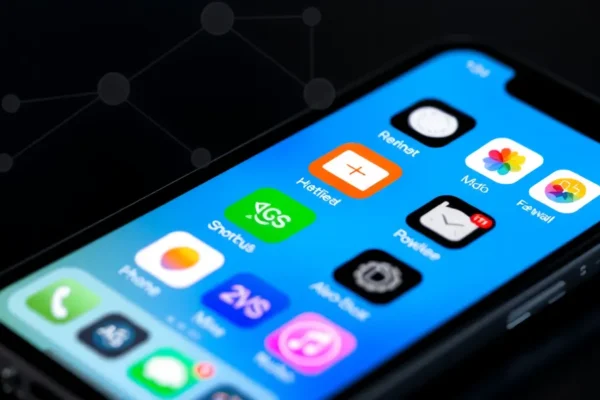
If you have an iPhone, you have a powerful personal assistant living right in your pocket. Apple automation, known as the Shortcuts app, is a built-in tool that lets you string together multiple steps to perform complex tasks with just one tap or a voice command. Think of it like a digital recipe: instead of manually opening three different apps to get something done, Shortcuts handles the heavy lifting for you.
This feature is designed for anyone who feels like they spend too much time tapping buttons on their screen. Whether you want to streamline your morning routine or improve your digital wellbeing by automatically silencing notifications, these iPhone tricks can reclaim your time. It is a free feature already installed on your device, making it one of the most underrated iOS features available today.
Seven Practical Ways to Use Shortcuts Daily
You can use these workflows to automate your life. Here are seven iPhone tips that make a genuine difference in your daily flow:
- The Morning Launchpad: Create a shortcut that triggers when you turn off your alarm. It can automatically show the weather, read your calendar, and start your favorite morning news podcast.
- Focus Mode Automation: Set your phone to enter “Work” mode automatically when you arrive at your office location. This stops distracting notifications before they start.
- One Tap Photo Upload: If you use cloud services like Dropbox or Google Drive, create a shortcut that takes a photo and immediately uploads it to a specific folder, saving you the hassle of manual menus.
- Low Battery Saver: Automatically dim your screen, turn off Bluetooth, and enable low power mode the moment your battery hits 20 percent.
- The Quick Journal: Make a button that opens your note-taking app and automatically inserts the current date and time so you can jot down thoughts instantly.
- Smart Music Control: Have your phone detect when your Bluetooth headphones connect and immediately resume your music or audiobook where you left off.
- The Digital Cleanup: Set a recurring reminder to clear out screenshots from your photo library once a week to save storage space.
Who Should Spend Time With Shortcuts
Shortcuts is best for people who love organized systems and want to squeeze more efficiency out of their devices. If you find yourself doing the same three-step process on your phone every single day, this is for you. It is also great for those looking to practice better digital wellbeing by reducing the time spent mindlessly scrolling through menus.
However, skip this if you prefer a “simple” phone experience where everything works out of the box without any setup. If you get frustrated by trial and error, the initial configuration of these workflows might feel more like a chore than a benefit.
How Shortcuts Compares to Other Tools
While Android users have long enjoyed Tasker for advanced automation, iOS Shortcuts is the definitive Apple-native solution. It is much more user-friendly than Tasker but slightly less powerful for “deep” system changes. Compared to simple third-party apps, Shortcuts has the major advantage of being free and deeply integrated into iOS. You do not need to worry about subscriptions or privacy concerns since it is an official tool from Apple.
Setup and Learning Curve
Getting started is relatively easy, but there is a slight learning curve. The Shortcuts app features a “Gallery” tab filled with pre-made, one-tap automations. You can simply tap “Add” on any of these to start. Building your own from scratch takes some patience, as you have to think in logical steps: “When this happens, do that.” Expect to spend 15 to 30 minutes tinkering with your first custom automation. If you get stuck, there is a massive community online sharing their own custom Shortcuts that you can download and install with a single click.
Real-World Pros of iPhone Automation
- Saves Time: You cut out repetitive manual navigation, which adds up to hours of saved time over a month.
- Consistent Performance: Once a shortcut is set, it performs the exact same way every time, removing human error.
- Privacy Focused: Because it is an Apple-built tool, your data stays within the secure ecosystem of your iPhone.
- Free to Use: There is no hidden cost or “pro” version subscription required to access the full power of the app.
Real-World Cons and Limitations
- Glitchy Execution: Sometimes, an automation might fail if an app updates its interface or requires an extra confirmation tap, which can be annoying.
- The “Banner” Problem: When a shortcut runs, it often displays a notification banner at the top of your screen, which can be visually distracting.
- Battery Usage: While generally efficient, complex automations running constantly in the background can have a minor impact on your daily battery life.
Value and Pricing
Since the Shortcuts app is free and pre-installed, the “cost” is simply the time you invest in learning how to use it. In terms of value, this is an incredible proposition. It effectively turns your standard iPhone into a customized powerhouse. There are no accessories to buy and no recurring fees, making this one of the most high-value iOS features available.
Verdict and Who Should Use It
If you are a power user or just someone who wants to spend less time managing your phone and more time using it, you should absolutely dive into iOS Shortcuts. It is not for everyone—if you are a casual user who is happy with your phone as it is, you can safely ignore it. However, for those who value productivity, it is a game-changer. Start by adding one or two automations from the Gallery to see how they change your daily workflow before trying to build complex sequences.
Common Questions About iPhone Shortcuts
Do I need to know how to code to use Shortcuts? No. The app uses a “building block” system. You simply drag and drop actions in a specific order, which makes it accessible for non-technical users.
Will these iPhone tricks slow down my device? Generally, no. Most shortcuts are very lightweight and only run when triggered. They will not impact the performance of your daily apps.
Can I undo an automation if I do not like it? Yes. You can toggle off or delete any shortcut at any time within the app, and it will immediately stop affecting your phone.
Are these shortcuts safe to download from the internet? Only download shortcuts from reputable sources or official Apple communities. Since they can access your data, always inspect what a shortcut does before you add it to your device.
Do I need to buy anything to use these features? No, all features of the Shortcuts app are completely free and included with iOS. No extra hardware or software subscriptions are required.
Product prices and availability vary by region. Verify current pricing before purchase.