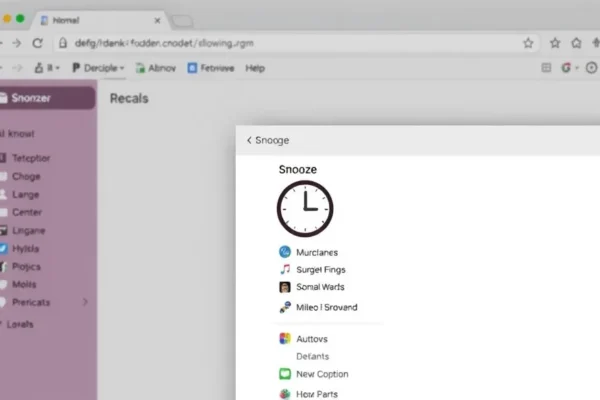
Taming Your Tab Overload: Meet the Tuck Browser Extension
Ever feel like your web browser is a ticking time bomb of open tabs? You know, the ones you meant to get back to, the research you were doing, the articles you wanted to read later? If your computer groans under the weight of dozens, maybe even hundreds, of open browser tabs, you’re not alone. That’s where the Tuck browser extension comes in. Think of it as a digital valet for your browser, helping you snooze browser tabs that are cluttering your screen and slowing you down. It’s a clever little tab management extension designed to bring order to your digital chaos, transforming your browser into a more focused and productive workspace. If you’re looking for a simple yet effective browser productivity tool, Tuck might be just what you need.
How Tuck Helps You Reclaim Your Browser
So, what exactly does Tuck do? In plain English, it allows you to temporarily “hide” or “snooze” tabs that you don’t need right now but don’t want to close completely. Instead of having those tabs taking up precious real estate and mental bandwidth, Tuck tucks them away neatly. When you’re ready to revisit them, you can easily bring them back with a click. This means fewer distractions, a less overwhelming browser window, and a clearer path to getting things done. It’s about making your browser productivity tool work for you, not against you.
Let’s look at some real-world scenarios:
- The Research Rabbit Hole: You’re researching a new appliance, and suddenly you have 20 tabs open: reviews, product pages, comparison sites, user forums. Tuck lets you snooze all but the most critical ones, keeping your focus on the task at hand. When you have more time, you can easily un-snooze and continue your deep dive.
- The Busy Bee with a Side Project: You’re juggling work deadlines and a personal passion project. Work tabs need to be visible and accessible, but your project tabs are a constant temptation and distraction. Tuck lets you stash your project tabs away during work hours, and bring them back when your workday is done.
- The Planning Pro: Planning a trip, a party, or a complex project? You’ll likely have many reference tabs open. Tuck allows you to hide these planning tabs when you need to switch gears, preventing the overwhelm and keeping your main workspace clean.
Essentially, Tuck helps you organize browser tabs by allowing you to declutter on demand, helping you reduce browser clutter and improve focus.
Who Will Benefit Most from Tuck?
Tuck is a fantastic solution for a few key groups of people:
- Best for: Anyone who frequently finds themselves with an overwhelming number of open browser tabs and feels their productivity suffer. This includes researchers, students, content creators, project managers, and anyone who uses their browser for multiple, distinct tasks throughout the day. If the sheer number of open tabs causes you stress or makes it hard to find what you need, Tuck is designed for you.
- Good for: Casual users who occasionally get lost in multiple tabs. Even if you don’t have hundreds, Tuck can still be a handy way to tidy up your browsing sessions and make them more efficient.
- Skip if: You prefer to keep all your relevant tabs open and easily accessible at all times, or if you have a very structured workflow that doesn’t involve jumping between many different topics. Also, if you’re already using a more advanced tab management software with extensive features for tab grouping, bookmarking, and session saving, Tuck might feel a bit too simple.
Tuck’s strength lies in its simplicity and its core function of snoozing. If that’s what you need, it’s a great fit.
How Does Tuck Stack Up Against Alternatives?
The world of browser add-ons for tab management is quite crowded. Many tab management extensions offer similar functionalities. Some popular alternatives include OneTab, Session Buddy, and The Great Suspender.
- OneTab is a well-known option that collapses all your open tabs into a single list, which is great for saving memory but can be less convenient for quick tab retrieval if you have many tabs.
- Session Buddy focuses on saving and restoring entire browsing sessions, which is powerful but can feel like overkill if you just want to temporarily hide a few tabs.
- m> The Great Suspender (and its successors like The Marvellous Suspender) automatically unloads inactive tabs to save memory, which is great for performance but doesn’t always offer the user control over which* tabs to snooze.
Tuck differentiates itself by focusing primarily on the act of “snoozing” with a clean, user-friendly interface. It’s less about session management and more about immediate tab tidying. Its approach feels like a direct answer to the common problem of tab overload, without the complexity of some other solutions.
When it comes to price, Tuck is generally offered as a free browser productivity tool, which is a significant advantage over paid alternatives or more complex software. This makes it an accessible option for everyone looking to improve their browsing experience.
Getting Started with Tuck: Easy as 1-2-3
One of the biggest wins for the Tuck browser extension is its incredibly straightforward setup and ease of use.
- Setup: You download the extension from your browser’s official add-on store (like the Chrome Web Store or Firefox Add-ons). Installation usually takes less than a minute and requires no special technical skills. You just click “Add to [Browser Name],” confirm, and you’re done.
- Ease of Use: Once installed, Tuck typically adds a small icon to your browser’s toolbar. Clicking this icon often reveals your “tucked away” tabs. To snooze a current tab, you usually just click the Tuck icon while that tab is active, or there might be a context menu option when you right-click on a tab. To bring a tab back, you find it in the Tuck menu and click it. It feels intuitive, like tucking a book onto a shelf when you’re not reading it, and pulling it back down when you want to pick it up again.
- Learning Curve: There’s virtually no learning curve. If you can click a mouse and navigate a website, you can use Tuck. It’s designed for everyday users who want a quick fix for tab clutter without a steep learning curve.
The Real Perks of Using Tuck
Using Tuck in your daily digital life brings several tangible benefits:
- Reduced Browser Clutter: This is the most obvious win. A cleaner browser means fewer visual distractions and a more pleasant browsing experience. You can finally see your browser window without a sea of tabs.
- Improved Focus: By hiding tabs you don’t need at the moment, Tuck helps you concentrate on the task at hand. No more accidental clicks on an irrelevant tab that throws you off course. This leads to better digital productivity.
- Saves Time: No more endlessly scrolling through tabs to find the one you need. Snoozed tabs are neatly organized in Tuck’s interface, making them quick to find and restore. This contributes to workflow optimization.
- Memory Savings (Indirect): While Tuck’s primary goal isn’t tab suspension like The Great Suspender, by reducing the number of active tabs in your browser window, it can indirectly help your browser run a bit smoother and consume less memory.
- Free and Accessible: As a free browser add-on, Tuck removes a common barrier to entry for improving your browser experience. You get its core benefits without spending a dime.
User feedback often highlights how Tuck provides a much-needed sense of calm and control over an otherwise chaotic browsing environment.
What Are the Downsides?
While Tuck offers a great solution, it’s not without its limitations:
- Limited Functionality Compared to Advanced Tools: If you need sophisticated tab grouping, automatic session saving, or advanced searching within tabs, Tuck might feel too basic. It does one thing (snoozing) and does it well, but it doesn’t aim to be an all-in-one solution.
- Reliance on the Extension: If the Tuck extension malfunctions or is temporarily disabled, you lose access to your snoozed tabs until it’s fixed. This dependency, while minor for most, is something to be aware of.
- Potential for “Snooze and Forget”: The very ease of snoozing can lead to users tucking away tabs and then completely forgetting about them indefinitely, which can be a different form of digital hoarding. While it reduces clutter, it doesn’t inherently force you to re-evaluate your content consumption.
- Browser Specificity: Like most extensions, Tuck is typically designed for specific browsers (e.g., Chrome, Firefox). If you use multiple browsers, you might need to install it on each.
These aren’t dealbreakers for most users, but they’re important considerations if you have very specific or demanding tab management needs.
Price, Value, and Getting Your Money’s Worth
This is where Tuck really shines. The Tuck browser extension is typically available for free. This means the price of entry is zero.
- Value Proposition: For a free tool, the value is exceptionally high if you suffer from tab overload. It directly addresses a common and frustrating problem with a simple, effective solution. You’re getting significant improvements in organization and focus without any financial investment.
- Hidden Costs: There are no hidden costs, subscriptions, or required in-app purchases for its core functionality.
- Comparison: Most comparable tab management software solutions that offer similar ease of use and core functionality are either free with limited features or paid. Tuck’s free status makes it a highly competitive option.
- Long-Term Value: As long as browsers continue to support extensions and your need for tab organization persists, Tuck offers long-term value. It’s a tool that works in the background, continuously helping you maintain a cleaner workspace.
The value of Tuck is measured in the time saved, the reduction in frustration, and the boost in productivity, all for the low, low price of free.
The Final Word: Should You Tuck Your Tabs?
If you’re drowning in a sea of browser tabs and your productivity is taking a hit, the Tuck browser extension is absolutely worth trying. It’s a simple, effective, and most importantly, free solution that brings order to browser chaos.
- Who should buy this: Anyone who feels overwhelmed by their open tabs, wants to improve their focus, and needs a quick and easy way to declutter their browser. It’s perfect for students, remote workers, researchers, or anyone who splits their digital time across many different websites.
- Who should wait or look elsewhere: If you already have a robust system for managing your tabs, or if you prefer more advanced features like session saving and automatic tab unloading, you might find Tuck a bit too basic. However, even then, its simplicity might appeal as a quick cleanup tool.
- Final Honest Take: Tuck does exactly what it promises: it lets you snooze browser tabs to reduce clutter and improve focus. It’s a fantastic example of a small browser add-on making a big difference in everyday digital life. It’s not a revolutionary piece of tech, but it’s a genuinely useful tool that solves a common problem elegantly.
Product prices and availability vary by region. Verify current pricing before purchase.
Frequently Asked Questions About Tuck
What is the Tuck browser extension?
The Tuck browser extension is a free add-on for web browsers that allows you to temporarily hide or “snooze” browser tabs you aren’t actively using, helping to reduce clutter and improve focus.
How do I install the Tuck browser extension?
You can install Tuck by searching for it in your browser’s official add-on store (like the Chrome Web Store or Firefox Add-ons) and clicking the “Add to Browser” button.
Is the Tuck browser extension free to use?
Yes, the core functionality of the Tuck browser extension is typically free to use.
Can Tuck help me improve my focus and productivity?
Absolutely. By letting you snooze browser tabs, Tuck helps reduce distractions, making it easier to concentrate on the task at hand, which in turn boosts your digital productivity.
What’s the difference between Tuck and tab suspension extensions?
While some extensions automatically unload inactive tabs to save memory (tab suspension), Tuck focuses on giving you the user control to manually snooze and unsnooze specific tabs whenever you choose, offering a more direct way to manage visual clutter.
Is Tuck a good tab management extension?
For users looking for a simple and effective way to manage tab overload, Tuck is an excellent tab management extension. Its ease of use and core snoozing feature are highly beneficial.