Your Windows 11 PC Just Got Smarter: Creating Custom Notifications
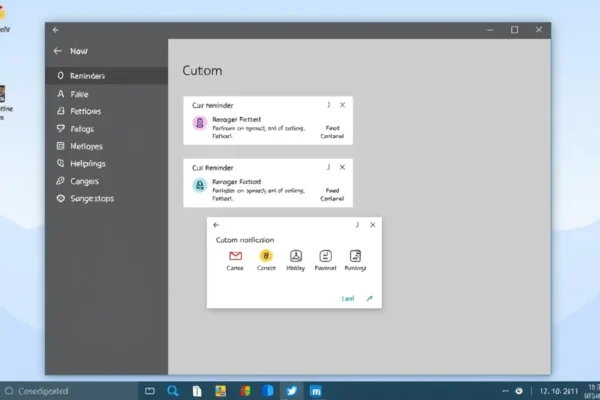
Ever missed an important appointment because your computer was just quietly humming along? Or wished you had a quick reminder to take a break or water your plants? Well, your Windows 11 PC is about to get a whole lot more helpful. We’re diving into how you can create custom Windows 11 notifications, turning your desktop into a personalized alert system for everything from crucial work deadlines to your daily dose of hydration. Think of it as giving your computer a voice, tailored to what you need to remember. This isn’t about fancy gadgets; it’s about making your existing technology work harder for you. If you use a Windows 11 computer for work, managing your home life, or just need a little nudge now and then, this is for you.
Making Your Windows 11 Notifications Actually Useful
So, what does creating custom Windows 11 notifications mean in the real world? It means setting up alerts that pop up on your screen exactly when you want them, for whatever reason you need. Forget generic calendar alerts; we’re talking about specific, actionable reminders.
Imagine this:
- For the Busy Professional: You’re deep in a project and might forget that client call at 2 PM. You can set a custom notification that pops up at 1:50 PM saying, “Client Call with XYZ Corp in 10 mins!” This works like a personal assistant, ensuring you’re always prepared.
- For the Health-Conscious Individual: You’re trying to drink more water throughout the day. You can schedule a notification to appear every hour: “Time to hydrate! 💧 Grab some water.” It’s a simple nudge that can make a big difference.
- For the Home Manager: Kids have after-school activities? You can set up event triggers. For instance, a notification could pop up at 3:30 PM on weekdays: “Remember to pick up Lily from soccer practice at 4:00 PM.” It’s like having a shared family planner on your screen.
These custom Windows 11 notifications can be triggered by time, specific dates, or even certain events on your computer, making them incredibly versatile for task management and personal reminders.
Who Needs These Custom Windows Alerts?
This feature is genuinely useful for a broad range of users, but here’s a breakdown:
- Best For: Individuals who juggle multiple tasks, appointments, and personal goals and want their computer to actively assist them. If you find yourself frequently saying, “Oh, I forgot about that!” this is for you. It’s also fantastic for those who like to automate aspects of their day for increased productivity hacks.
- Good For: Anyone using Windows 11 who wants more control over their digital environment. This includes students managing coursework, freelancers coordinating projects, or even just someone who wants a gentle reminder to stretch or take a mental break.
- Skip If: You’re someone who prefers a minimalist, distraction-free digital experience and finds pop-up notifications annoying by default. If you already have a robust system for reminders (like a physical planner or a dedicated app you’re happy with) and don’t want to add another layer, you might not need this.
Beyond the Built-in: How It Stacks Up
Windows 11 has a decent notification system built-in, allowing apps to send alerts. However, creating truly custom notifications, especially those triggered by specific events or complex scheduling, often requires a bit more work.
Think of the built-in system as a friendly wave from an app. Creating custom alerts is like having a personalized chat with your computer. For more advanced, recurring, or highly specific alerts, you might explore third-party task management apps or scripting tools. However, for most everyday needs, Windows 11’s native capabilities, when leveraged correctly, are surprisingly powerful.
The key difference is control. While many apps offer their own notification settings, this lets you bypass app-specific controls to create system-wide reminders tailored precisely to your workflow. There’s no direct price comparison because this is a built-in feature of Windows 11, meaning it’s included with your operating system. The “cost” is your time to set it up.
Getting Started: Easier Than You Think
Setting up custom Windows 11 notifications can sound daunting, but for many common scenarios, it’s quite straightforward. The primary tool you’ll use is the Task Scheduler, a powerful, built-in Windows utility.
- Learning Curve: For simple time-based reminders, the learning curve is minimal. You’ll be creating a basic task within minutes. For more complex event triggers or recurring schedules, it can take a bit longer to grasp all the options.
- m> Ease of Use: While the Task Scheduler interface isn’t the most visually modern, it’s logical. You tell it when to do something and what* to do. For our purpose, “what” will often be displaying a message.
- Time to Set Up: A simple daily reminder might take 5-10 minutes to set up. A more intricate weekly alert with specific conditions could take 20-30 minutes for your first attempt.
The key is to start simple. Don’t try to build the most complex reminder system on day one. Experiment with a single, easy reminder and build from there.
The Real-World Perks of Custom Windows 11 Notifications
Here are some genuine advantages you’ll experience by setting up these personalized alerts:
- Reduced Mental Load: Instead of constantly trying to remember everything, you can offload those thoughts to your computer. This frees up mental energy for more important tasks. As one user shared on a tech forum, “I used to have sticky notes everywhere. Now, my PC reminds me, and my desk is cleaner!”
- Improved Punctuality: Missing appointments or deadlines becomes less likely. A timely desktop reminder is far more effective than a buried email or a forgotten calendar entry.
- Habit Building: Want to drink more water, take breaks, or practice a skill? Custom notifications act as consistent accountability partners, helping you build positive habits.
- Personalized Productivity: You can tailor your computer’s alerts to fit your unique workflow and lifestyle, making your PC feel more like a helpful assistant and less like a passive tool.
- Cost-Effective Solution: Since this uses built-in Windows features, there’s no additional cost. It’s a free way to boost your personal organization and task management.
The Downsides and Limitations to Be Aware Of
No feature is perfect, and it’s important to know the limitations:
- Not Always Visual: By default, many custom notifications might just be a subtle pop-up or a sound. For highly visual alerts, you might need to explore more advanced scripting or third-party tools.
- Requires Setup Effort: While not overly complex, it does require you to proactively set up each notification. It’s not an instant “on” feature; you have to invest time to build your system.
- Can Be Overlooked: If you have many applications sending notifications, a custom alert might get lost in the noise if not configured thoughtfully. You need to manage your notification settings carefully.
- Limited to Your PC: These notifications only appear when your PC is on and configured to show them. They won’t follow you to your phone like a dedicated app might.
- Task Scheduler Can Be Intimidating: For users completely new to system tools, the Task Scheduler’s interface can appear a bit technical at first glance, despite its underlying simplicity for basic tasks.
Value Proposition: Is It Worth Your Time?
Since creating custom Windows 11 notifications primarily utilizes the built-in Task Scheduler, the financial cost is zero. The true “price” is the time and effort you invest in setting them up.
- Value: For individuals who need better organization, productivity hacks, or personal reminders, the value is extremely high. The ability to reclaim mental space and improve punctuality for free is a significant win.
- Who is it for: Anyone who has a Windows 11 PC and struggles with remembering tasks, appointments, or personal goals.
- Budget Alternatives: If the Task Scheduler feels too daunting, you could consider free or low-cost reminder apps from the Microsoft Store or other productivity suites. However, these often have their own limitations or may not offer the same level of customization as Task Scheduler for specific event triggers.
- Long-Term Value: The value is ongoing. Once set up, these reminders work passively, continually aiding your productivity and memory without further cost or effort.
The Final Word: Enhance Your Windows 11 Experience
Creating custom Windows 11 notifications is a powerful, often overlooked feature that can significantly enhance your daily life. It’s a practical way to make your PC work for you, acting as a diligent assistant for reminders, alerts, and habit-building.
Who should buy this? This isn’t a purchase; it’s a skill to learn and implement. If you use Windows 11 and want to be more organized, remember important tasks, or simply get nudged to take better care of yourself, diving into custom notifications is absolutely worth your time.
Who should wait or look elsewhere? If you genuinely have a perfect system already in place and don’t want to tinker with your PC’s settings, or if you find pop-up alerts overwhelming, you can safely skip this.
Ultimately, it’s about transforming your PC from a passive tool into an active partner in managing your life. The best use case is precisely what you need it to be – whether that’s remembering your anniversary or just taking a screen break every hour.
Frequently Asked Questions about Windows 11 Custom Notifications
Can I create notifications that pop up at specific times?
Yes, absolutely! This is one of the most common uses. You can schedule notifications to appear at precise times on specific days of the week or month using the Task Scheduler.
Do I need to buy any special software for custom Windows 11 notifications?
No, for most basic and intermediate custom notifications, you can use the built-in Task Scheduler that comes with Windows 11. It’s a free and powerful tool.
How difficult is it to set up a custom Windows alert?
For simple time-based reminders, it’s quite easy and can take less than 10 minutes. More complex event triggers might require a bit more learning, but there are plenty of online guides to help.
Can I create recurring reminders with custom Windows notifications?
Yes, the Task Scheduler is excellent for setting up recurring tasks, so you can have daily, weekly, monthly, or even yearly alerts without having to recreate them each time.
Will these custom Windows alerts work if my computer is asleep?
Generally, scheduled tasks will run when your computer wakes up if the scheduled time has passed. However, if your PC is completely shut down, the task won’t run until you turn it back on and the scheduled time is met.
Are these custom notifications accessible on my phone?
No, these are strictly desktop notifications for your Windows 11 PC. If you need reminders that sync across devices, you’d need to look at dedicated reminder apps or services.
Product prices and availability vary by region. Verify current pricing before purchase.