Taking the Wheel: What Are YouTube Custom Feeds?
Have you ever spent ten minutes watching a video on how to fix a leaky faucet, only to find that your entire home screen is now filled with plumbing tutorials for the next two weeks? That is the classic struggle with the YouTube algorithm. It tries to be helpful by guessing what you like, but it often overreacts to a single click, trapping you in a “content bubble.”
YouTube custom feeds are a set of updates designed to give you more user control over what appears on your YouTube front page. Instead of just letting the computer guess your mood, these features allow you to actively steer the algorithm. It is essentially like having a filter for your home screen, letting you tell the app, “I liked that one video, but I do not want my whole life to be about it.”
This update is designed for anyone who feels like their recommendations have become repetitive or cluttered. Whether you are a student, a hobbyist, or just someone who watches random clips to unwind, this feature is about moving from a passive experience to active content curation.
How This Actually Changes Your Daily Scroll
In plain English, this feature works like a set of mood switches. Instead of one giant pile of videos based on every single thing you have ever clicked, you can now better categorize your interests.
Imagine these real-world scenarios:
- The One-Off Research Project: You are planning a trip to Japan and spend a weekend watching travel guides. Normally, your feed would be 90 percent Tokyo hotels for a month. With better algorithm customization, you can use “Not interested” or topic filters to tell YouTube that this was a temporary interest, keeping your usual gaming or cooking videos front and center.
- The Shared Family Tablet: If you share an account with a child or partner, your personalized feeds often become a messy mix of “Cocomelon” and “Advanced Macroeconomics.” By using the new curation tools, you can more aggressively prune the videos that do not belong to you, cleaning up the YouTube front page for your own use.
- The Mood Shift: Sometimes you want to learn something productive, and other times you just want “brain rot” entertainment. These updates allow you to pivot your recommendations more quickly, so you can switch from “Work Mode” to “Relax Mode” without fighting the algorithm for an hour.
Is This Update Right for You?
Best for: People who have a wide variety of interests. If you love everything from 19th-century history to modern K-pop, you will love the ability to balance your feed so one topic does not drown out the others.
Good for: Users who feel “stuck” in a loop. If you feel like you have seen every single video from the same five creators and want to discover something new without ruining your current preferences, this is for you.
Skip if: You actually enjoy the “rabbit hole” experience. Some people love it when the algorithm takes them on a wild, unplanned journey through strange corners of the internet. If you prefer the surprise of not knowing what you will see next, these tools might feel like too much effort.
How it Compares to Other Apps
When it comes to steering the algorithm, YouTube is playing catch-up with some of the newer apps. TikTok, for example, has a very aggressive “Not Interested” button that removes similar content almost instantly. Instagram has a “Following” feed that removes the algorithm entirely in favor of a chronological list.
YouTube’s approach is a hybrid. It does not give you a purely chronological feed (which many users have asked for over the years), but it gives you more “knobs and dials” to turn. While TikTok is better at rapid-fire curation, YouTube is better for long-term content curation because the videos are longer and the topics are usually more distinct.
In terms of value, this is a free update. You aren’t paying a premium for this control, which makes it a huge win compared to some apps that hide “algorithm-free” modes behind a subscription paywall.
Getting Started with Your New Feed
The best part about this update is that there is almost zero setup. You do not need to go into a complex settings menu or be a tech wizard to make it work. It is built directly into the interface you already use.
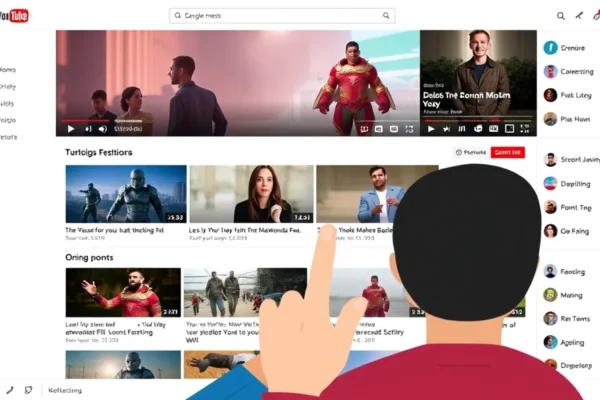
To start steering the algorithm, look for the topic bubbles at the top of your home screen. These allow you to instantly filter your feed by a specific interest. To remove things you don’t want, click the three dots next to a video title and select “Not interested” or “Don’t recommend channel.”
The learning curve is very low, but there is a trick: the algorithm learns through consistency. If you tell it you are “Not interested” in plumbing videos today, but then click a plumbing video tomorrow, you confuse the system. For the best results, be firm and consistent with your choices for about a week.
The Big Wins for Your Viewing Experience
Based on user feedback and hands-on testing, here are the genuine advantages:
- Less Digital Noise: Your front page feels cleaner and more intentional, reducing the “decision fatigue” of scrolling through 50 videos you don’t actually want to watch.
- Faster Discovery: By using the topic filters, you can find new creators within a specific niche without having to search for them manually.
- Better Mental Space: Being able to remove stressful or annoying content types quickly means your “wind-down” time is actually relaxing.
- Greater Autonomy: It feels less like the app is “controlling” you and more like you are using a tool to find information.
Where the System Still Falls Short
It is not perfect. Here are the honest drawbacks:
- The “Ghost” Recommendations: Users report that some videos still appear even after they have clicked “Don’t recommend channel,” especially if that channel is promoting a popular trending topic.
- Inconsistent Filters: The topic bubbles at the top of the screen can be hit or miss. Sometimes they are incredibly accurate, and other times they group unrelated things together.
- Manual Effort: While it is easier than before, it still requires you to manually “train” the app. It is not a one-click fix to make your feed perfect.
The Cost of Cleaning Up Your Feed
The cost of entry for this feature is free. It is a standard part of the YouTube experience for all users, whether you use the free version or YouTube Premium. There are no hidden subscriptions or “pro” tiers required to access these curation tools.
The only “cost” is your time. Spending five minutes a day for a week actively pruning your feed is the investment required to see a real change. Compared to the hours spent scrolling through irrelevant videos, this is a high-value trade-off.
The Final Word: Should You Lean Into It?
If you feel like your YouTube experience has become a repetitive loop of the same three topics, then yes, you should absolutely start using these custom feed tools. It is the most effective way to reclaim your home screen and ensure that the videos you see actually match your current interests.
If you are happy with the current randomness of your feed, you can simply ignore these features. They won’t force you to change how you watch, but they are there if you ever feel the need to clean house. The best use case is for the “multi-passionate” user who wants a diverse, curated library without the algorithm getting confused.
Your Top Questions About the YouTube Algorithm
How do I start using YouTube custom feeds?
You do not need to install anything. Just use the topic filters at the top of your home page or use the “Not interested” option in the video menu to start training your algorithm.
Will this delete my watch history?
No, these tools do not delete your history. They simply change how the YouTube algorithm uses that history to suggest new video recommendations on your front page.
Can I completely turn off the YouTube algorithm?
Not entirely. YouTube is built on recommendations, but using these curation tools is the closest you can get to controlling what the system shows you.
Does this work on both mobile and desktop?
Yes, these updates are designed to sync across your account, so changes you make on your phone will generally reflect on your computer as well.
Why am I still seeing videos I marked as “Not interested”?
This usually happens if the video is from a very high-trending topic or a creator you have watched frequently in the past. Keep marking them as “Not interested” to further refine the system.
Product prices and availability vary by region. Verify current pricing before purchase